Build with Docker Local
Docker Build Local: Overview
Docker Build Local uses your machine’s resources to build container images. This is the traditional approach that works without requiring any subscription or cloud services.
Prerequisites
- Docker Engine installed and running
- For Linux: Docker Engine
- For Mac/Windows: Docker Desktop (optional)
- Docker Hub authentication completed in the previous section
To verify Docker is properly installed and running:
docker -vIf you see information about your Docker version without errors, you’re ready to proceed:
Docker version 27.3.1, build ce1223035aBuilding the Docker Image
1. GitHub Authentication
Authenticate with GitHub using the pre-installed GitHub CLI:
# Check if already authenticated
gh auth status || gh auth login
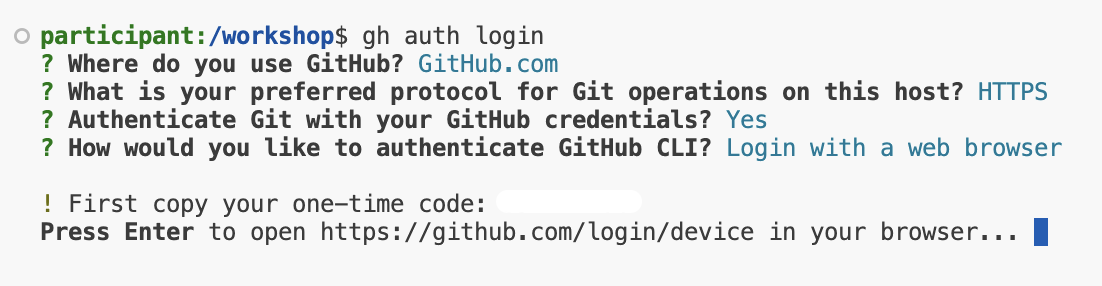
If you need to authenticate, you will be guided through several prompts:
- Select GitHub.com
- Select HTTPS as your preferred protocol
- When asked “Authenticate Git with your GitHub credentials?”: Enter Y
- Select Login with a web browser
- Copy the one-time code shown in your terminal
- Press Enter to open the browser
- Paste the code in GitHub and authorize access
- Come back to VS Code Server and wait for it be authenticated. (This can take up to 30 seconds or more)
2. Fork and Clone the Repository
Instead of cloning directly, we’ll fork the repository first:
# Fork and clone the repository
gh repo fork aws-samples/Rent-A-Room --clone=true

# Change to the repository directory
cd Rent-A-Room
3. Create the Configuration Files
First, let’s create the Dockerfile:
cat << 'EOF' > Dockerfile
# Build stage
FROM node:12 as build
WORKDIR /app
ENV DISABLE_ESLINT_PLUGIN=true
COPY package*.json ./
RUN npm install
COPY . .
RUN npm run build

FROM nginx:1.14
COPY --from=build /app/build /usr/share/nginx/html
COPY nginx.conf /etc/nginx/conf.d/default.conf
EXPOSE 80
CMD ["nginx", "-g", "daemon off;"]
EOF
Next, create the nginx configuration file:
cat << 'EOF' > nginx.conf
server {
    listen 80;
    server_name localhost;

    root /usr/share/nginx/html;
    index index.html;

    # Support for SPA routing
    location / {
        try_files $uri $uri/ /index.html;
        add_header Cache-Control "no-cache";
    }

    # Serve static files
    location /static/ {
        expires 1y;
        add_header Cache-Control "public";
    }

    # Handle all API requests
    location /api/ {
        proxy_pass http://localhost:3000;
        proxy_http_version 1.1;
        proxy_set_header Upgrade $http_upgrade;
        proxy_set_header Connection 'upgrade';
        proxy_set_header Host $host;
        proxy_cache_bypass $http_upgrade;
    }
}
EOF
3.1 Configure for Multiple Environments
Create environment files to handle different deployment scenarios:
# Create development environment file:
cat << 'EOF' > .env.development
REACT_APP_API_URL=/proxy/3000
EOF

# Create production environment file:
cat << 'EOF' > .env.production
REACT_APP_API_URL=/api
EOF
3.2 Update Configuration Files
Update both package.json and App.js to handle different environments:
# Add environment check before the return statement in App.js
sed -i '/function App() {/a\  const isVSCodeServer = window.location.href.includes('\''cloudfront.net'\'');\n  const basename = isVSCodeServer ? '\''/proxy/3000'\'' : '\''/'\'';' src/App.js

# Update Router to use basename
sed -i '/<[Rr]outer>/s/>/\ basename={basename}>/g' src/App.js

# Update package.json to add homepage
sed -i '/"private": true,/a\  "homepage": ".",' package.json
Want to understand more about the Dockerfile?
This Dockerfile uses a multi-stage build process to create an optimized production image for a Node.js application served by Nginx. Let’s break it down:
Build Stage
# Build stage
FROM node:12 as build
WORKDIR /app
ENV DISABLE_ESLINT_PLUGIN=true
COPY package*.json ./
RUN npm install
COPY . .
RUN npm run build- FROM node:12 as build: Starts with a Node.js 12 base image, naming this stage “build”.
- WORKDIR /app: Sets the working directory in the container.
- COPY package*.json ./: Copies package.json and package-lock.json (if present) to the working directory.
- RUN npm install: Installs the Node.js dependencies.
- COPY . .: Copies the rest of the application code into the container.
- RUN npm run build: Builds the application (typically creating a build or dist folder).
Production Stage
# Production stage
FROM nginx:1.14
COPY --from=build /app/build /usr/share/nginx/html
COPY nginx.conf /etc/nginx/conf.d/default.conf
EXPOSE 80
CMD ["nginx", "-g", "daemon off;"]- FROM nginx:1.14: Starts a new stage using the Nginx 1.14 base image.
- COPY –from=build /app/build /usr/share/nginx/html: Copies the built files from the previous stage to Nginx’s serving directory.
- COPY nginx.conf /etc/nginx/conf.d/default.conf: Copies the Nginx configuration file.
- EXPOSE 80: Informs Docker that the container will listen on port 80.
- CMD [“nginx”, “-g”, “daemon off;”]: Starts Nginx in the foreground when the container runs.
4. Build Your Image with Docker
Build the image using Docker:
# Measure build time
start_time=$(date +%s)
docker build -t rent-a-room .
end_time=$(date +%s)
echo "Build completed in $((end_time - start_time)) seconds"
5. Verify Your Image
Check that your image was built successfully:
docker images | grep rent-a-roomIf built successfully you will see output like this:
rent-a-room latest 0b9c31de0251 3 seconds ago 111MB6. Run the Container
Start a container using the image you built:
# Stop and remove container if it exists, then create a new one
docker stop rent-a-room-container 2>/dev/null || true
docker rm rent-a-room-container 2>/dev/null || true
docker run -d -p 3000:80 --name rent-a-room-container rent-a-room
7. Test the Application
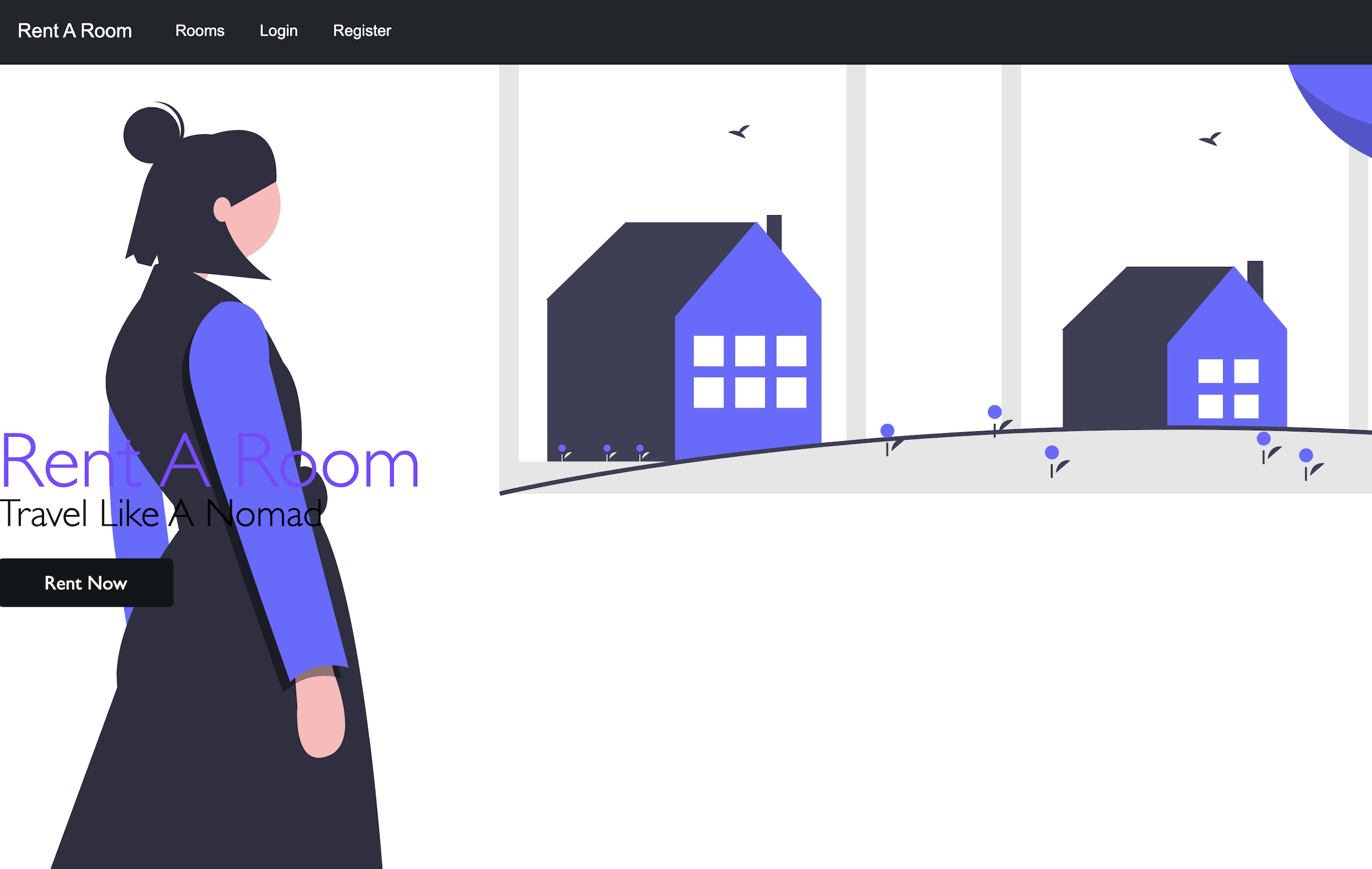
Access your application in VS Code Server by going to the PORTS section, and click on the Forwarded Address.

This is what the application will look like:
8. Enable Remote Caching
For faster builds, especially in CI/CD environments, let’s use your Docker Hub account for remote caching:
# Use your Docker Hub username from the environment variable
echo "Using Docker Hub username: $DOCKER_USERNAME"

docker build \
  --cache-from $DOCKER_USERNAME/rent-a-room:latest \
  -t rent-a-room .
9. Push Your Image to Docker Hub
Now that you’ve built your image locally, let’s push it to Docker Hub so you can share it or use it in other environments:
# Tag the image with your Docker Hub username
docker tag rent-a-room $DOCKER_USERNAME/rent-a-room:latest

# Push the image to Docker Hub
docker push $DOCKER_USERNAME/rent-a-room:latest
Verify the Tagged Image Locally
Check that your image has been tagged correctly:
docker images | grep rent-a-roomYou should see both your local image and the tagged image ready for Docker Hub:
$DOCKER_USERNAME/rent-a-room   latest    0b9c31de0251   5 minutes ago   111MB
rent-a-room                    latest    0b9c31de0251   5 minutes ago   111MB
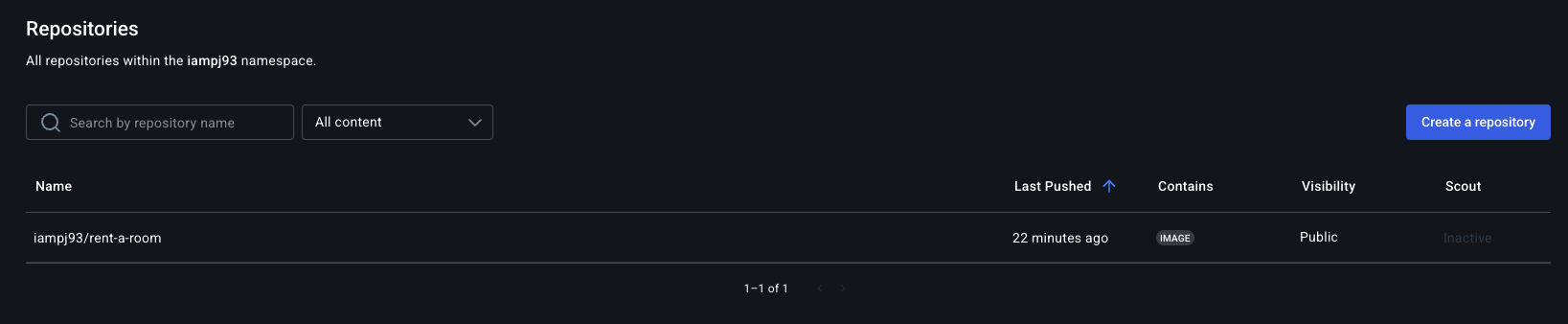
Verify the Image on Docker Hub
After pushing, you can verify that your image is available on Docker Hub by clicking on this link:
echo https://hub.docker.com/r/$DOCKER_USERNAME/rent-a-roomOr by navigating to Docker Hub in your browser and checking your repositories.
10. Stop and Remove the Application Container
To stop the running container:
docker stop rent-a-room-containerTo remove the container:
docker rm rent-a-room-container⚠️ Important: Next Steps
You’ve completed the Docker Build Local section!
To continue with the workshop:
- 🛑 DO NOT click the “Next” arrow (which leads to Docker Build Cloud)
- ✅ Instead, Click Here to Continue to Docker Scout
This ensures you follow the correct path and don’t duplicate the build process.
Summary
- Docker Build Local uses your machine’s resources to build container images.
- Multi-stage builds create optimized production images.
- Remote caching can improve build performance even with local builds.
- Docker Hub integration allows for sharing and reusing images.
- Pushing to Docker Hub makes your images available anywhere.
In the next section, we will explore how to utilize Docker Scout.